Have a Remote Support session with Us
Remote Support using “Zoho Assist”
What is Zoho Assist?
“Zoho Assist” is a Remote Assistance Service that allows PickleIT support to troubleshoot technical issues or tutor you on your computer over the Internet while talking with you on the phone. Zoho Assist works on Windows, Mac, Linux, IOS, Andriod and ChromeOS..
What can Remote Support be used for?
While not all computer problems can be solved remotely, a large majority of problems can be, such as:
- Virus/Spyware Removal and Prevention.
- OS Troubleshooting and Repair.
- Assisted Data Backup and Recovery.
- Computer Tutoring (Microsoft Office, Digital Video Editing, Internet, etc.)
- Computer Performance Optimization.
- Software Installation, Uninstallation and Repair.
- Advanced Diagnostics.
- Printer, Scanner, Camera, etc., installation and troubleshooting.
- System Cleaning.
- Network Security Analysis and Optimization.
- Much more…
With PickleIT Support, you are guaranteed the most rapid response time when you are in need of technical support. Whether you are an average home user, or a travelling business user, I can be there virtually to help you with your computer in an instant no matter where you are.
How do I use PickleIT Support?
Here are the steps needed in order to start a remote support session:
- Contact Pickle IT by phone, text email Messenger or WhatsApp.
- You will be directed to open a web browser of your choice (eg: Firefox, Chrome, Zen).
- In your web browser, type the following into the address bar:
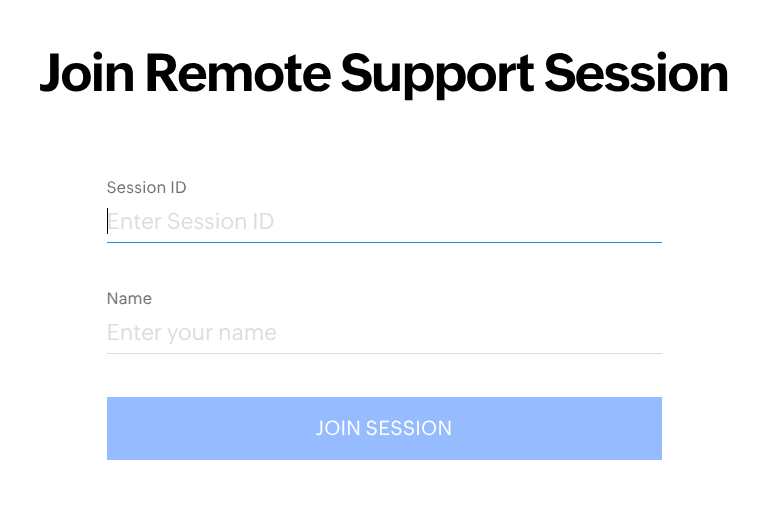
You should see a page with a form that looks like the one in the image.:
- You will be directed to fill out the form using the following details:
- “Session ID”: Enter the session ID given to you by the technician,
- “Name”: Enter your name.
- Click “JOIN SESSION”,
- Final steps:
- Download and Run: You will be will be prompted to download a small, one-time executable file (e.g.,
ZA_Connect.exefor Windows). - Find the download: if you weren’t prompted to for a location to save the download, the file should be in one of the following locations:
- Windows: C:\Users\<user>\Downloads
- MacOS: \Users\<user>\Downloads
- Linux: \home\<user>\Downloads
- Run the downloaded file.
- Grant Permission: When you run the downloaded (executable) file, you must click Join or Allow on the permission prompts to share their screen and allow remote control.
- Download and Run: You will be will be prompted to download a small, one-time executable file (e.g.,
Is Pickle IT Support safe and secure?
Yes, very much! Remote desktop sessions can only be started by you. You have complete control of your PC throughout the entire session and can disconnect at any time by ending the Zoho Assist session.
What does Pickle IT charge for a remote assistance session?
All remote sessions are £25 per hour. You will be billed after a successful session has been completed.
For any tech issues that require an on-site visit,
there’s “Pickle IT on-site support.”
